
Quick Start: Sales Rep
In this article
In this article group
Welcome to Curvo! This guide will get you up and running in five simple steps. You'll be using Curvo's AI-powered meeting intelligence in just a few minutes.
Step 1: Accept Your Workspace Invite
You'll receive an email invitation from your company admin. Click the link to set your password and enter your Curvo workspace.
Open the invitation email from your admin
Click the link to create your password
Log in to your Curvo workspace
Note: If your admin has already pre-added you to the workspace, you can join even before the primary Workspace Owner completes their setup. This is intentional and helps your team get started faster. If you don't see an invitation email, check your spam folder or contact your admin.
Step 2: Connect Your Calendar
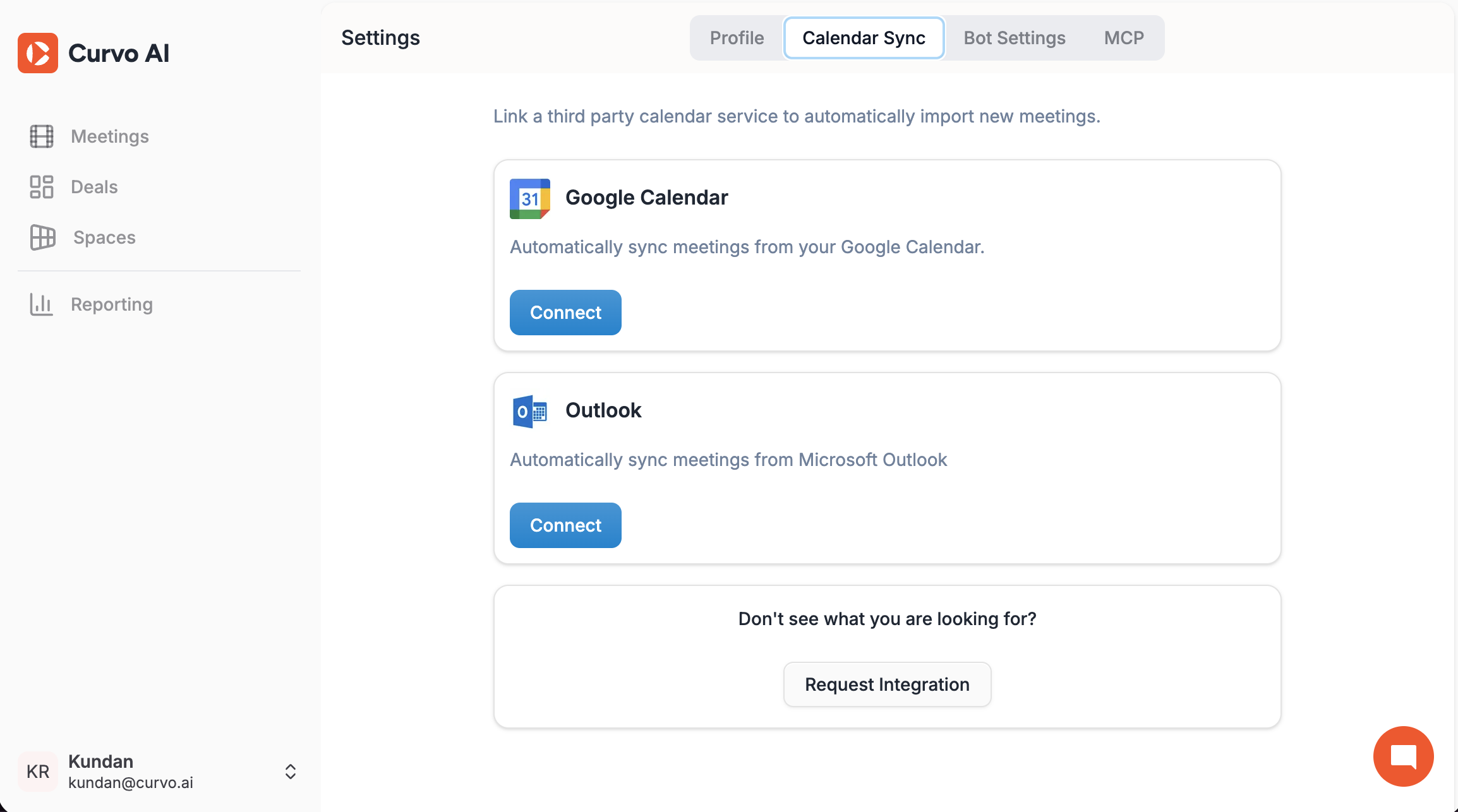
Curvo's Instant Bot works best when it knows your schedule. Connect your calendar so the bot can detect your upcoming meetings and join automatically.
Go to Settings → Integrations → Calendar
Choose Google Calendar or Microsoft Outlook
Authorize Curvo to access your calendar
Note: Without a calendar connection, you'll need to manually summon the bot for each call using a meeting URL. Connecting your calendar enables the fully automatic experience.
Step 3: Install Companion (If Required)
Some workspace types require the Curvo Companion desktop app for optimal performance. Check whether your setup needs it before moving on.
Post-Call + In-Call Bot, Post-Call + In-Call Companion, or Companion Only: You'll need to install Companion
Post-Call Only: This step is not required
To install:
Check the banner in your workspace, or ask your admin which type applies to you
Go to Settings → Companion
Download and install the app for your operating system (Windows or Mac)
Step 4: Attend a Meeting
Once your calendar is connected, Curvo is ready to listen. You don't need to do anything during the call.
Schedule a new meeting or join an existing one from your calendar
The Instant Bot will automatically join at the meeting start time
You'll see Curvo listed in the participant list. No action needed from you.
After your call ends, give Curvo 5–10 minutes to process the recording and generate insights
Curvo handles the recording and analysis in the background.
Step 5: Review Your Post-Meeting Analysis
After Curvo finishes processing, your meeting insights are ready to explore.
Click Meetings in the left sidebar
Your most recent call will appear at the top of the list
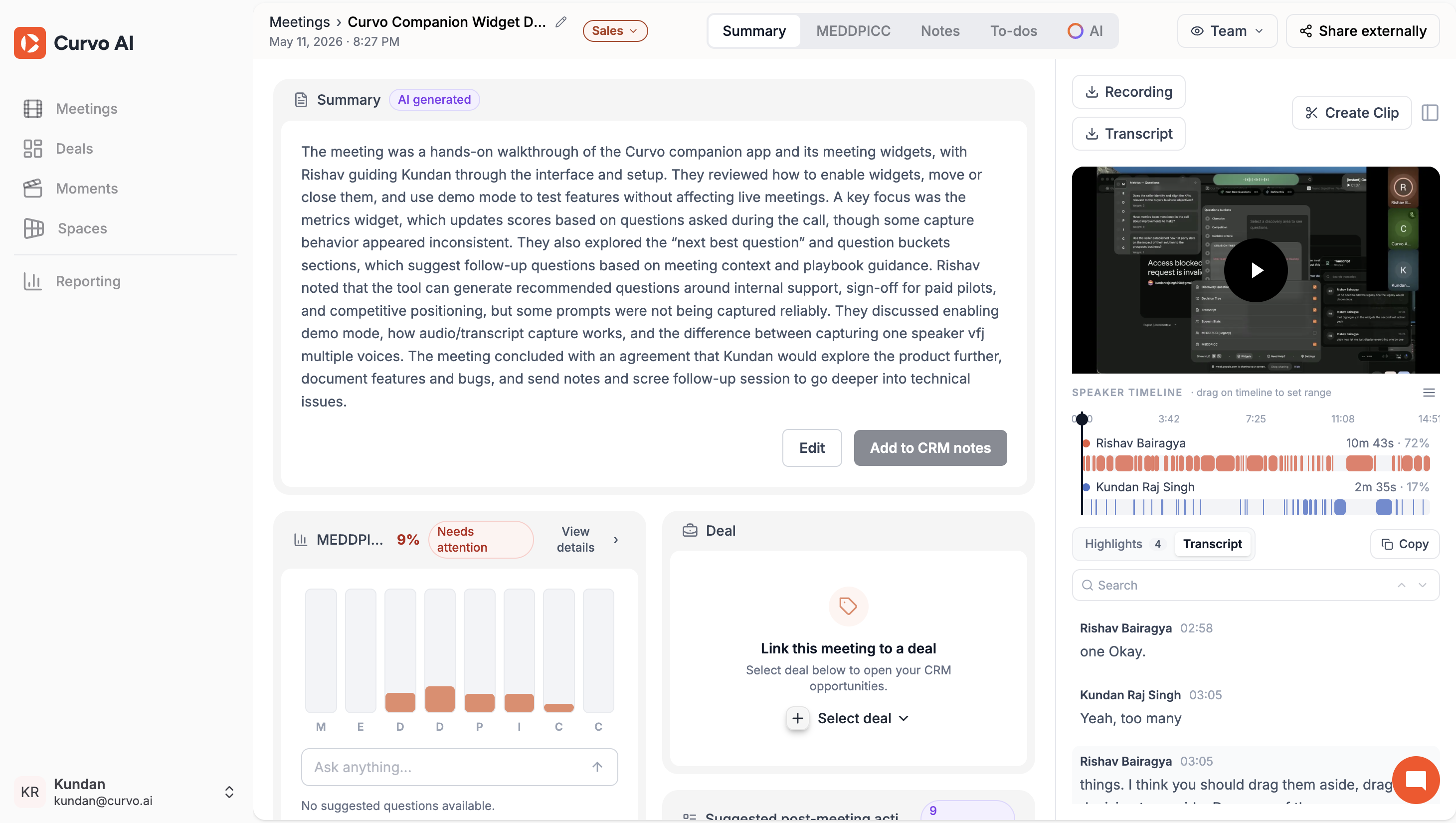
Open the meeting to access:
Summary: A concise overview of the conversation
MEDDPICC Score: Sales methodology alignment score
Notes: Key discussion points
To-Dos: Action items captured from the call
AI Chat: Ask Curvo questions about the meeting
You're All Set
You're now ready to use Curvo on every call. Your next meeting will automatically have Curvo present, and you'll see AI-powered insights within minutes of the call ending.